As long as Apple does not offer a 32GB iPhone, iPad or iPod as a base model, these types of inquiries will be common. Users with a 16GB device will always have to look at how to manage their storage and all the alarms will go off when they see that there is a lot of space in the "others" section of iTunes. 1GB on a 32GB or 64GB device is acceptable, but on a 16GB device it can come in handy for recording video, saving music or installing applications. In this article we will talk about what it is and how to do it delete content that appears as "other" in iTunes.
What is included in «other»
The "others" section of iTunes includes contacts, messages, MMS and other types of application cache. There is also data that iTunes cannot recognize for whatever reason.
How to delete content that appears as "other" in iTunes
Uncheck the automatically sync box
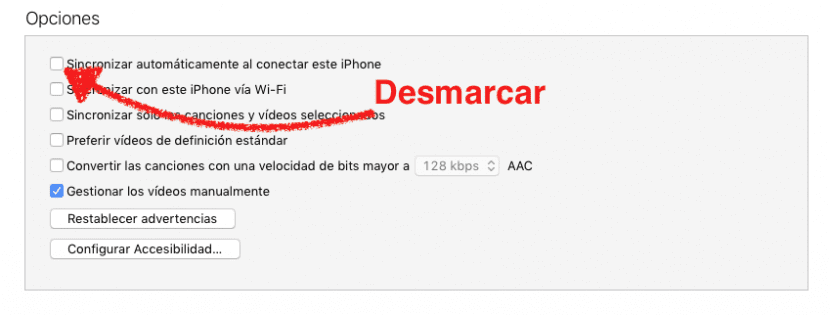
This simple gesture is likely to help reclaim some of the space that remains housed in "others." It may work because it forces iTunes to recalculate the space every time we connect our device to the computer. We will do the following:
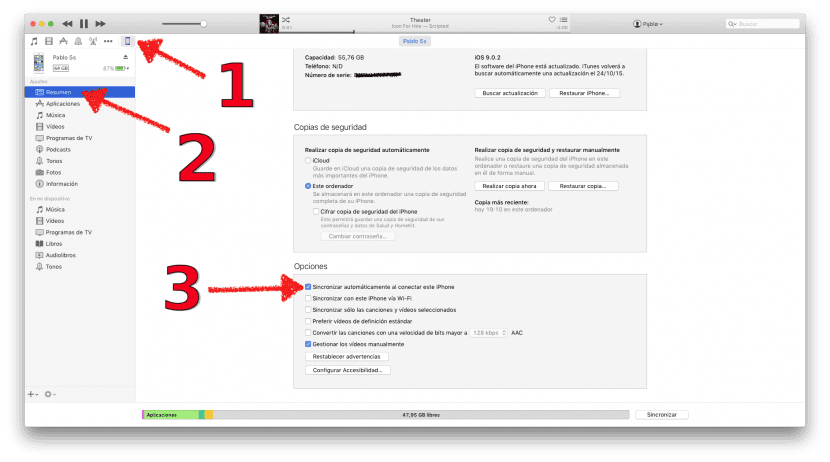
- We connect the iPhone, iPod or iPad to the computer.
- We open iTunes.
- We select our device at the top left.
- We choose Summary.
- Uncheck the box "Synchronize automatically when connecting this iPhone."
Removing caches
If you want to eliminate more space, another thing we can do is clear app cache. Twitter, Facebook, WhatsApp, Telegram, etc., can store photos, videos and other types of documents that can take up a lot of space. For example, Telegram has the option to clear the cache every week and, even so, I usually have a lot of gigs busy.
The downside of removing caches is that it is a tedious process and it is likely that we will delete some that are not actually taking up much space.
Testing another recalculated
There is another possibility, but it is the last thing we have to do, after trying the two previous methods. We do the following:
- We open iTunes with the iPhone, iPod or iPad connected
- We uncheck everything we want to synchronize, except the applications.
- We apply the changes.
- We re-mark what we want to synchronize.
- We apply the changes again.
If we do the three previous methods, we will remove all or almost all the content of "others" in iTunes.
Table of Contents