During Apple's latest revenue conference, Tim Cook assured us that more than one 60 % of customers who had bought an iPhone 5c and an iPhone 4s used to have an Android terminal in your possession. Although we do not have the sales figures for these terminals, it gives us to understand that the figure is easily located in a few million users. With this in mind, today we will tell you how to transfer data from your Android terminal to iOS quickly and easily (if possible).
How to transfer contacts from Android to iOS
When it comes to transferring contacts between Android and iOS, there are numerous ways to do it. Today I will share with you the method that I think is easier. The first thing we will do is access our contacts from our Android terminal, once there we select the option that says «import Export«. Within this option we will select «export to storage«. Now that we have the exported vCard We access our mail server and select the vCard file as an attachment.
If you are using Outlook, just select the memory card and there at the bottom you will find the file you want to send as an attachment. You send it to yourself, open the file from your computer and you access www.icloud.com, enter your data, access the contacts and in the settings of this section select the option «Import vCard«. You upload the file that you have sent to yourself and that you have already downloaded to your computer and you have already imported your contacts to your iPhone (assuming you have the contacts synced with iCloud of course).
How to transfer your music from Android to iOS
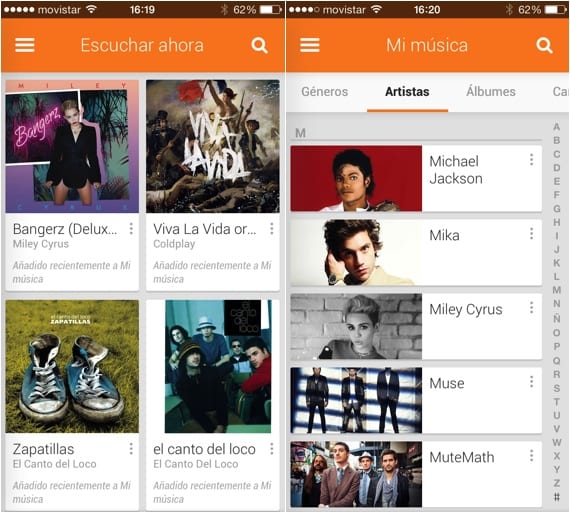
In the case of music, the process is much simpler since you just have to download an application. Specifically, you will need to download the application Google Play Music which is already available on iTunes a few months ago. In this application you will find the music that you have loaded from your Android device already uploaded to the cloud. If you want to listen to music without being connected to the internet, just press the "arrow" button that you will find at the top of the application when you access an album.
On the other hand, if you have music on your computer, all you have to do is synchronize it with iTunes and you will already have it on your iPhone. To transfer the music from an Android device to your computer, you just have to copy it to your memory card and transfer that card to your computer. Then you just have to sync this music with iTunes and connect your iPhone to update it with your music.
How to transfer your photos and videos from Android to iOS
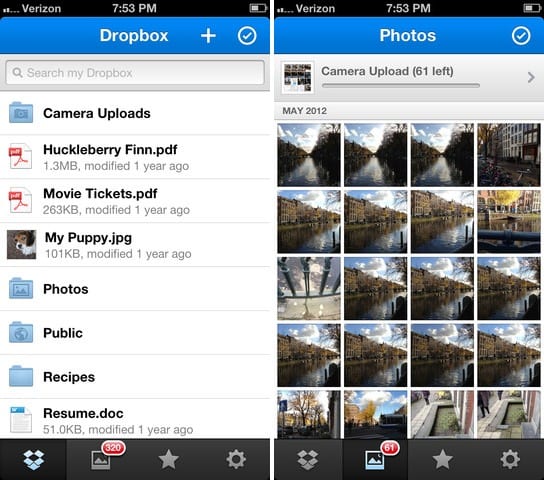
When it comes to passing photos and videos, the easiest thing you can do is opt for the Dropbox route. In this way, all you have to do is install the Dropbox application on both terminals, upload the photos from your Android terminal to Dropbox and download them to your iPhone directly from the application. It is important to emphasize that this option also has its limitations, especially when you are using a free account. And is that the limit of a free account is around 2.5 GB So if all your photos and videos exceed this storage capacity then you will have to do it in two or more rounds. Personally, I recommend showing the videos that tend to take up a lot first and then the photos that don't take up that much (unless you have hundreds of photos).
How to transfer all your data from Android to iOS with a single application.

Unfortunately, if you want to transfer all your content from Android to iOS with a single application, you will have to resort to the payment options. In this case I have been lucky with Mobile Trans, a program that has versions for Mac and Windows and whose operation is quite simple. Enough that connect both devices to the computer via USB to start the transfer of all your data.
The application is quite intuitive so it is not necessary to give many explanations and what I liked the most about it is the simplicity and agility of the process. Once you have both devices connected you start the program and you select what you want to transfer. With MobileTrans you can pass contacts, text messages, photos, music and videos.
It is also interesting that you can choose to back up data that you have stored in a terminal, something that personally comes in handy to me as well as deleting the data from your iOS terminal. In any case, it is important to note that not all Android terminals are supported by this program, so it is better to make sure that your terminal is compatible before making the purchase (it is compatible with more than 2000 terminals).
The program is available for $19.95 (about 15 euros to change) directly from the developer page. Obviously we are paying a premium in exchange for doing the whole process easily and without fuss since you can do it on your own with the methods that I have previously described. However, it is interesting to know all the options that we have at our disposal, right?